Introduction to MMD and Vocaloid Cosplay
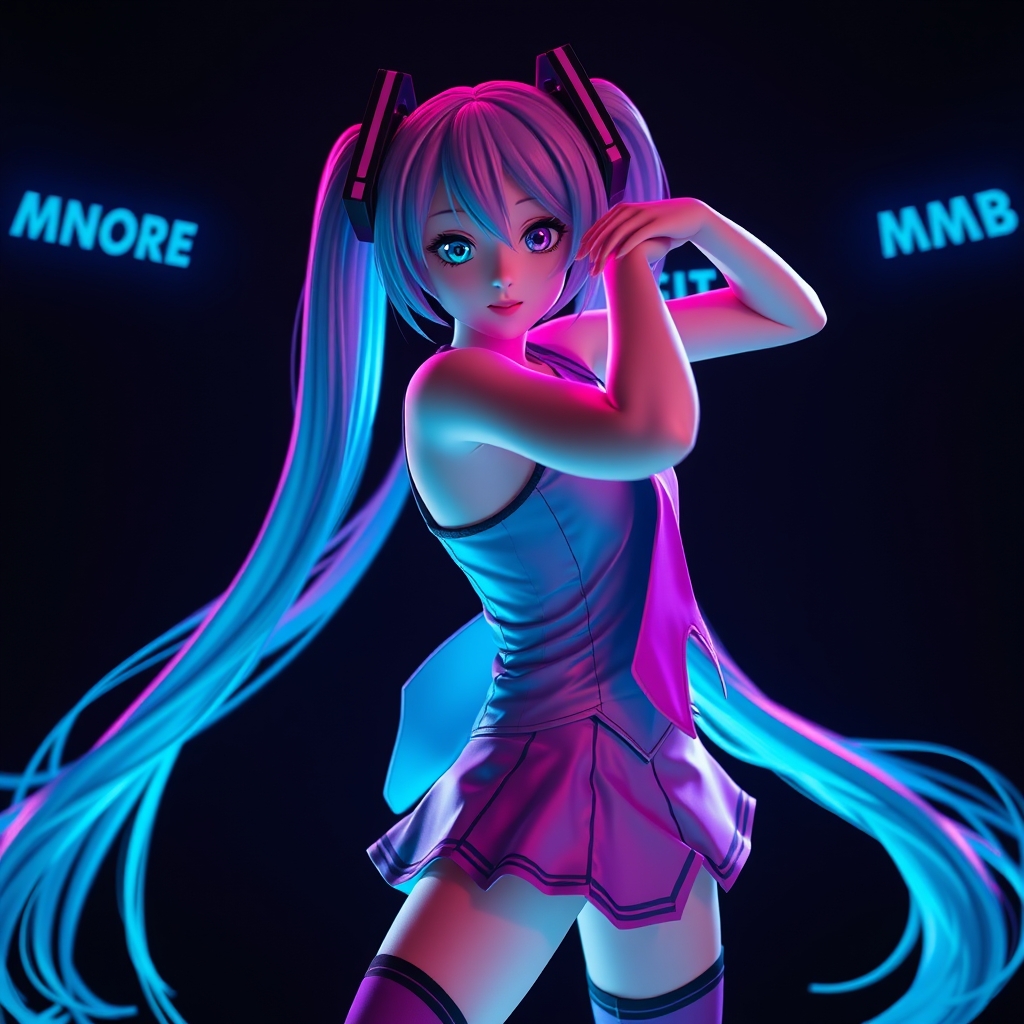
Vocaloid cosplay has become increasingly popular, with fans around the world creating their own music videos and performances using 3D avatars. One of the key tools used to create these animations is MMD (MikuMikuDance), a free 3D animation software developed by Yu Higuchi. In this guide, we'll take you through the basics of MMD and show you how to create stunning 3D dance animations for Vocaloid cosplay.
Getting Started with MMD
Before you begin, make sure you have a computer that meets the system requirements for MMD. You can download the software for free from the official MMD website. Once installed, familiarize yourself with the interface, which consists of a 3D viewport, a timeline, and various toolbars.
Basic Navigation and Tools
- The 3D viewport allows you to view and manipulate your 3D models and animations.
- The timeline is where you'll create and edit your animations, setting keyframes and adjusting motion curves.
- The toolbars provide access to various tools, such as the move, rotate, and scale tools.
Importing Models and Accessories
To create a Vocaloid-style animation, you'll need to import a 3D model and accessories. You can find a wide range of free and paid models online, many of which are specifically designed for MMD. Some popular sources include:
- MMD Model Repository
- DeviantArt
- Pixiv
Once you've downloaded a model, import it into MMD by selecting "File" > "Import" > "Model" and navigating to the model's file. You can also import accessories, such as clothes, hats, and props, to customize your model.
Tips for Choosing the Right Model
- Choose a model that is compatible with MMD and has a suitable poly count for your computer.
- Consider the level of detail and texture quality when selecting a model.
- Make sure the model is properly rigged for animation.
Creating a Basic Animation
With your model and accessories imported, it's time to create a basic animation. Start by setting a few keyframes to define the motion:
- Move the playhead to the starting point of your animation.
- Set a keyframe by clicking the "Insert Keyframe" button or pressing F6.
- Move the playhead to the ending point of your animation.
- Set another keyframe and adjust the motion curve to create a smooth transition.
Adding Music and Lip Syncing
To create a Vocaloid-style animation, you'll need to add music and lip syncing:
- Import your music file by selecting "File" > "Import" > "Audio" and navigating to the file.
- Use the audio waveform to help you lip sync your model.
- Adjust the phoneme settings to fine-tune the lip syncing.
Advanced Techniques and Tips
As you become more comfortable with MMD, you can experiment with advanced techniques, such as:
- Physics simulations: Use MMD's built-in physics engine to create realistic simulations.
- Particle effects: Add visual effects, such as fire, water, or sparks, to enhance your animation.
- Camera control: Use the camera tools to create dynamic shots and angles.
Conclusion and Resources
With practice and patience, you can master MMD and create stunning 3D dance animations for Vocaloid cosplay. For more information and resources, check out:
- Official MMD website: https://mmd.hginc.co.jp/
- MMD tutorials on YouTube: https://www.youtube.com/results?search_query=MMD+tutorial
- MMD community forums: https://forum.mmd.hginc.co.jp/