Introduction to MMD and Vocaloid Cosplay
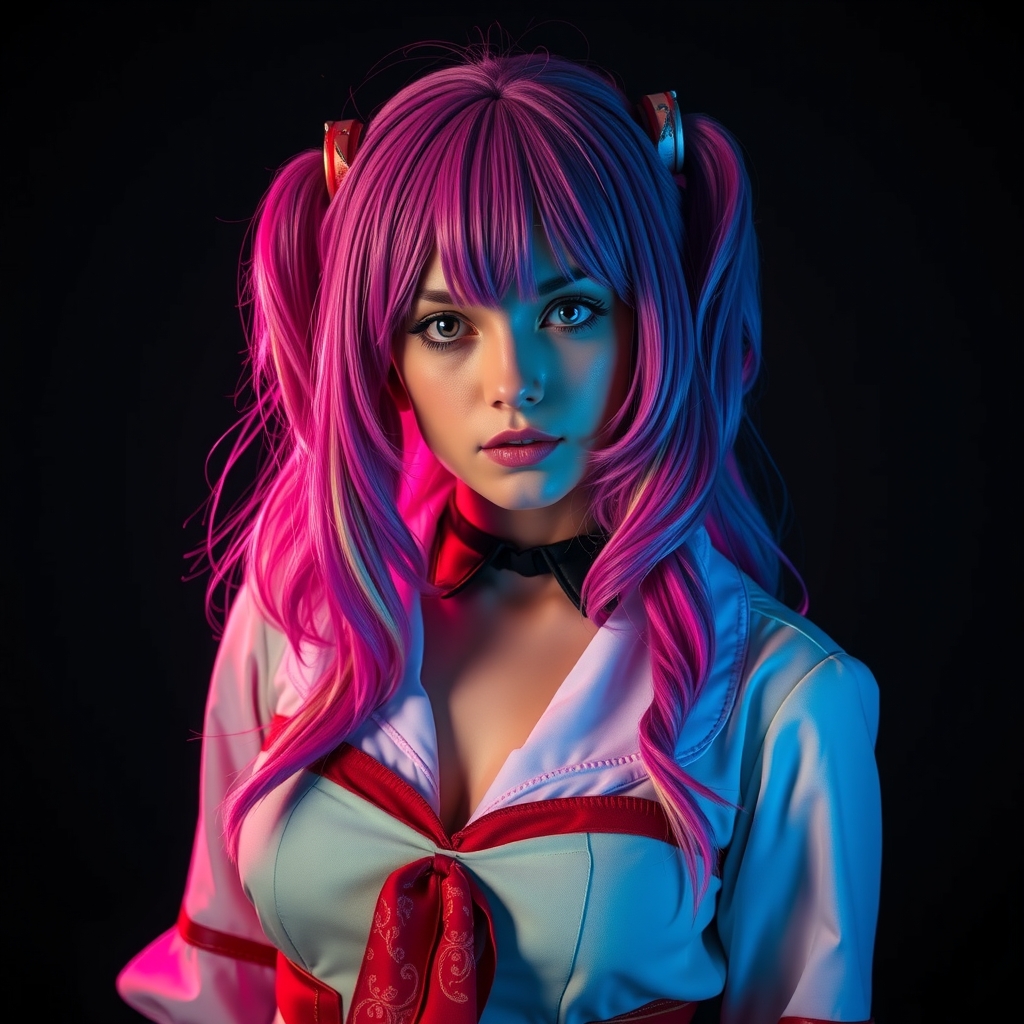
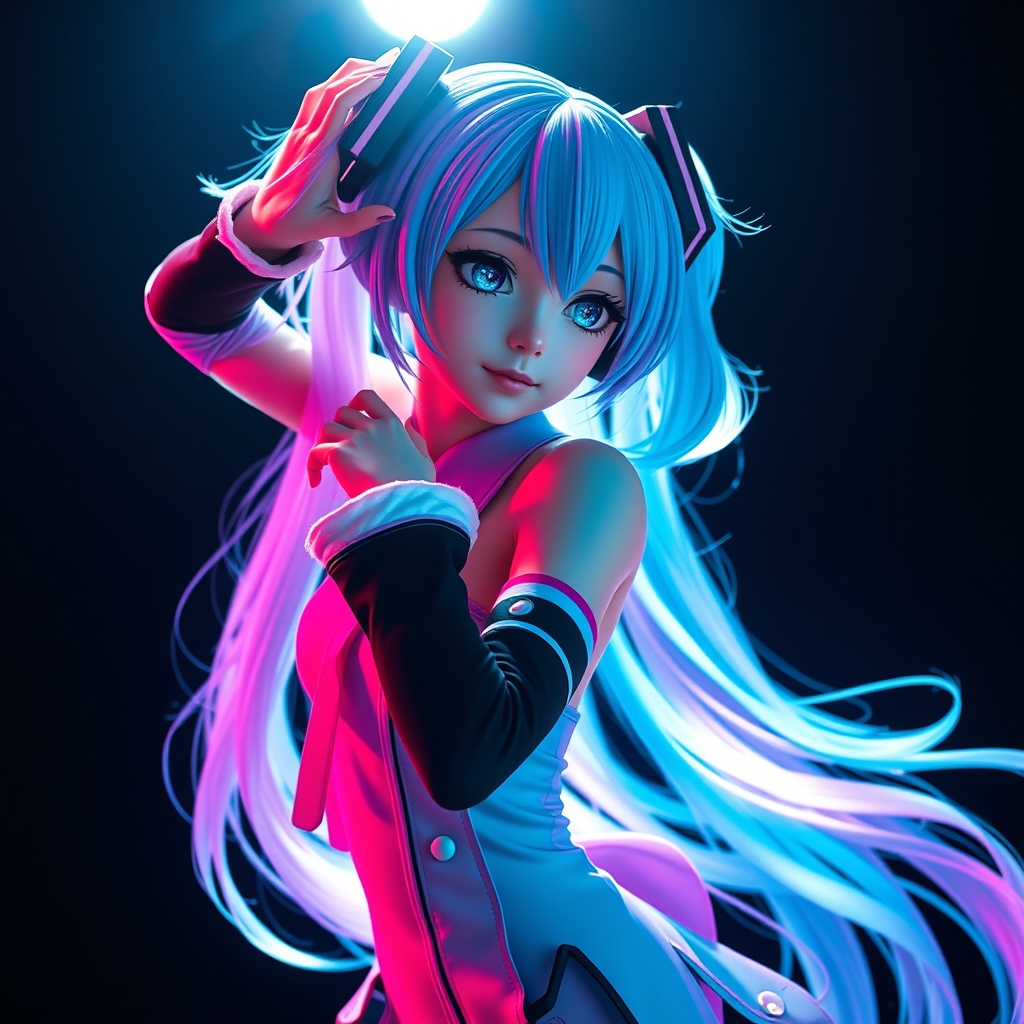
MMD, or MikuMikuDance, is a free 3D animation software that has become a staple in the Vocaloid community. Vocaloid, a singing synthesizer software, has given birth to a plethora of virtual singers, including the iconic Hatsune Miku. As a cosplayer, creating 3D dance animations with MMD can elevate your Vocaloid cosplay to the next level. In this guide, we'll walk you through the process of creating stunning 3D dance animations for Vocaloid cosplay.
Getting Started with MMD
Before diving into the world of MMD, make sure you have a computer that meets the software's system requirements. You can download MMD for free from the official website.
- Operating System: Windows 10 or later (64-bit)
- Processor: Intel Core i5 or equivalent
- Memory: 8 GB RAM or more
- Graphics: NVIDIA GeForce GTX 660 or equivalent
Once you've installed MMD, familiarize yourself with the interface. The software is divided into several sections, including the 3D view, motion editing, and audio editing.
Importing Models and Accessories
To start creating your animation, you'll need to import a 3D model and accessories. You can find a wide range of free MMD models and accessories online, including those of Vocaloid characters. Some popular resources include:
- MMD Model Repository
- Vocaloid Wiki
- DeviantArt
When importing models and accessories, make sure they are in the correct format (PMX or PMD) and are compatible with your version of MMD.
Creating a Basic Animation
With your model and accessories imported, it's time to create a basic animation. Follow these steps:
- Set the stage: Create a new project and set the stage to a suitable size. You can choose from a variety of pre-made stages or create your own.
- Position the model: Place your model on the stage and adjust its position, rotation, and scale as needed.
- Add motion: Create a new motion data by clicking on the "Motion" tab and selecting "New Motion." You can then record motion data using the "Motion Recording" tool or by keyframe animation.
- Add audio: Import your favorite Vocaloid song and sync it with your animation.
Advanced Techniques and Tips
To take your animation to the next level, try these advanced techniques:
- Use physics: MMD has a built-in physics engine that allows you to simulate realistic movements. Experiment with different physics settings to achieve the desired effect.
- Add expressions and gestures: Use MMD's built-in facial expression and gesture tools to add more personality to your model.
- Experiment with lighting: Lighting can make or break an animation. Experiment with different lighting setups to achieve the desired mood and atmosphere.
Conclusion and Resources
With this guide, you're well on your way to creating stunning 3D dance animations for Vocaloid cosplay. Remember to practice and experiment with different techniques to improve your skills. For more resources and tutorials, check out:
- MMD Official Website
- Vocaloid Wiki
- MMD Tutorials on YouTube
Happy animating, and don't forget to share your creations with the MMD and Vocaloid communities!