Introduction
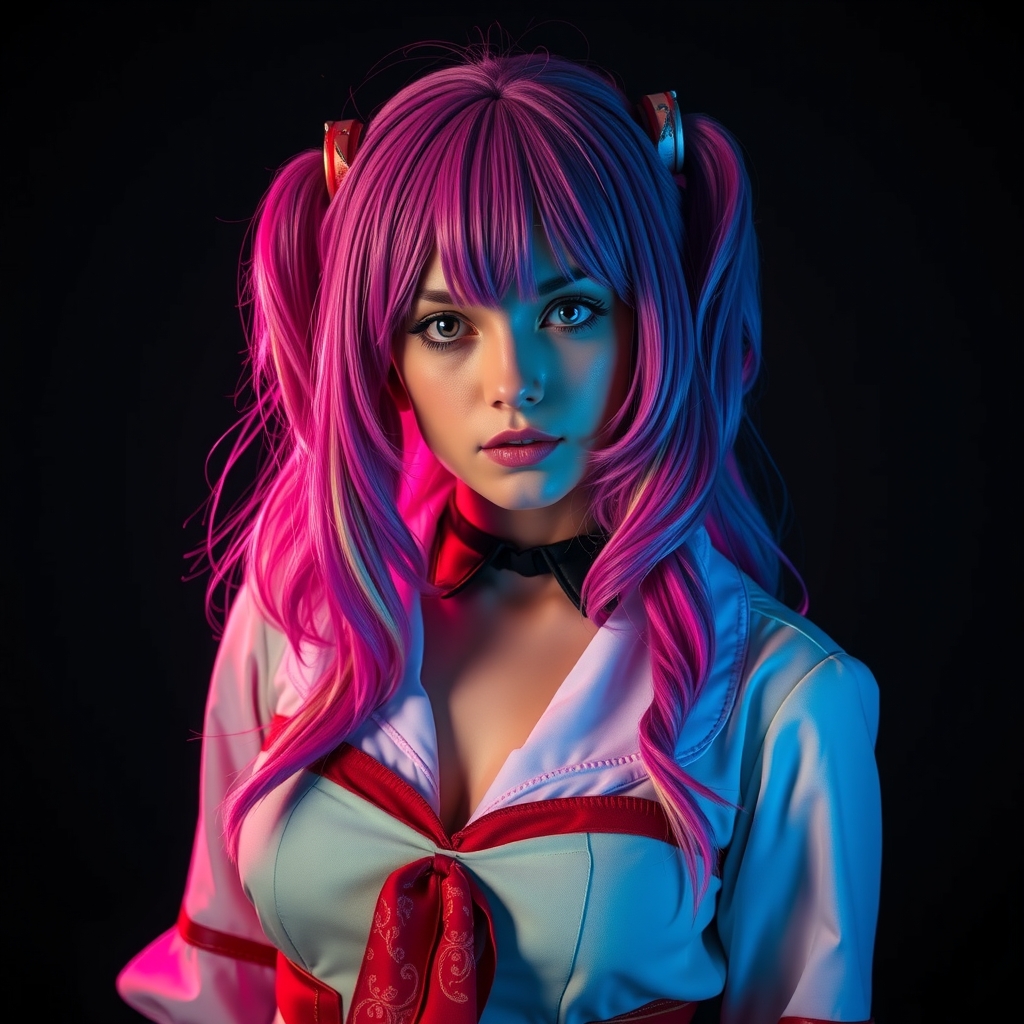
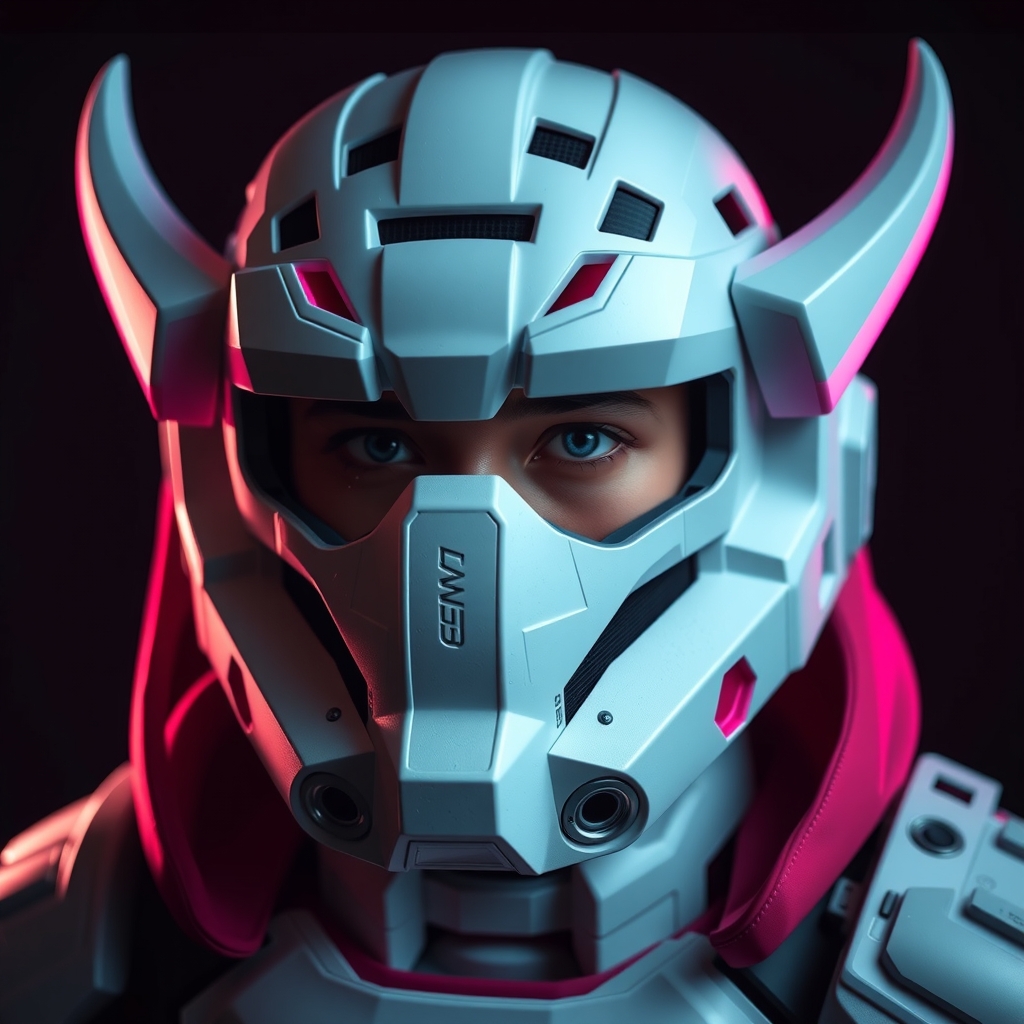
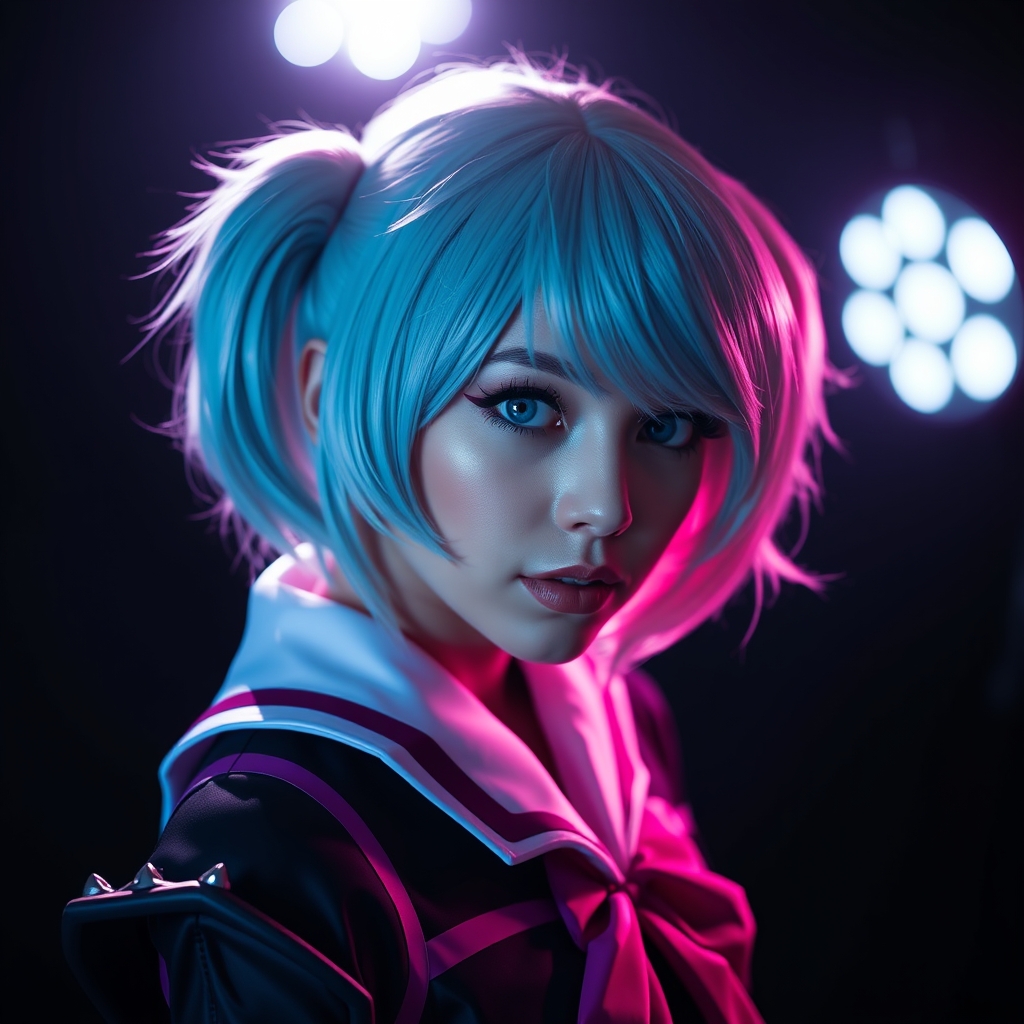
As a cosplayer, having great photos is essential for showcasing your hard work and creativity. However, professional photography sessions can be expensive, and not everyone has the budget to hire a photographer. The good news is that with a smartphone and some free editing software, you can take your cosplay photography to the next level without breaking the bank.
Smartphone Photography Tips
Smartphones have come a long way in terms of camera capabilities, and with the right techniques, you can take stunning photos. Here are some tips to get you started:
- Natural Light: Natural light is always the best option for photography. Look for outdoor locations with soft, indirect light, such as parks or gardens. If shooting indoors, try to position yourself near a window with soft light.
- Composition: Pay attention to the background and composition of your shot. Look for simple backgrounds that won't distract from your cosplay, and experiment with different angles and poses.
- Focus and Exposure: Use your smartphone's camera app to adjust focus and exposure. Tap on the screen to focus on your subject, and adjust the exposure by swiping up or down.
- Stabilize Your Camera: A tripod or stabilizer can help prevent camera shake and blurry photos. You can also use a stack of books or a makeshift stabilizer to achieve the same effect.
Free Editing Software
Once you've taken your photos, it's time to edit them. Here are some free editing software options that can help you achieve professional-looking results:
- GIMP: A popular free and open-source editing software that offers many of the same features as Adobe Photoshop.
- Canva: A user-friendly graphic design platform that offers a range of templates and editing tools.
- Lightroom Mobile: A free version of the popular editing software, offering a range of tools and presets.
Step-by-Step Editing Guide
Here's a step-by-step guide to editing your cosplay photos using GIMP:
- Import Your Photo: Open GIMP and import your photo by dragging and dropping it into the workspace.
- Adjust Exposure and Contrast: Use the 'Levels' tool to adjust exposure and contrast, making sure your image has a good balance of light and dark areas.
- Remove Blemishes: Use the 'Heal Tool' to remove blemishes and imperfections from your image.
- Add a Vignette: Use the 'Lens Distortion' tool to add a subtle vignette to your image, drawing attention to your subject.
Additional Tips and Tricks
Here are some additional tips and tricks to help you take your cosplay photography to the next level:
- Experiment with Angles: Don't be afraid to experiment with different angles and poses. Get creative and try out new things!
- Pay Attention to Details: Pay attention to details such as props, makeup, and wardrobe. Make sure everything is accurate and polished.
- Collaborate with Friends: Collaborate with friends or fellow cosplayers to get feedback and try out new ideas.
Conclusion
With these tips and tricks, you can take your cosplay photography to the next level without breaking the bank. Remember to experiment, have fun, and be creative! Happy snapping!