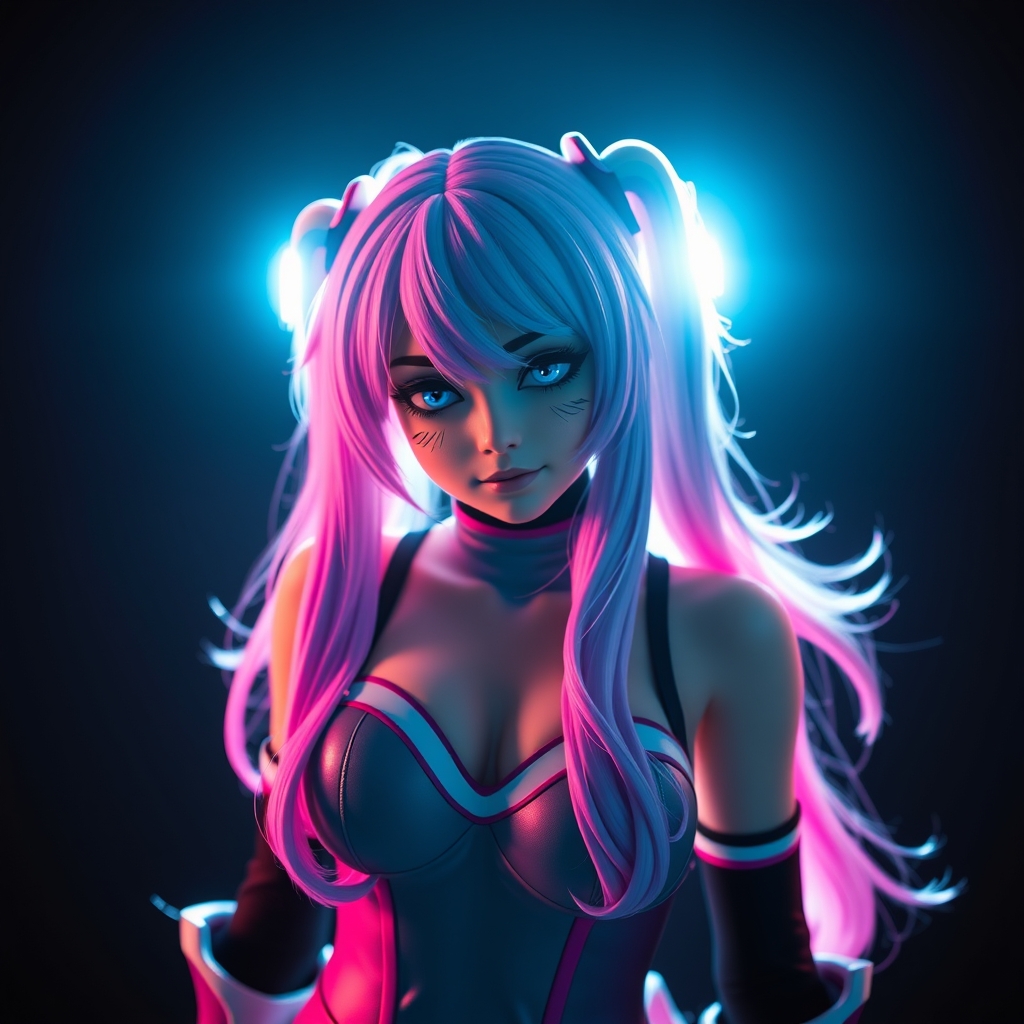
Introduction to MMD
MMD, or MikuMikuDance, is a free 3D animation software that has gained popularity among cosplayers, virtual YouTubers, and 3D model enthusiasts. Developed by Yu Higuchi, MMD allows users to create stunning 3D animations using a simple and intuitive interface. In this guide, we'll walk you through the basics of MMD and provide you with the skills to create your own 3D cosplay animations.
Getting Started with MMD
Before diving into MMD, make sure you have a computer that meets the system requirements. You can download MMD for free from the official website. Once installed, familiarize yourself with the interface, which consists of a 3D viewport, a timeline, and various toolbars.
To start creating, you'll need a 3D model. You can find a wide range of free MMD models online, including characters from popular anime and video games. Some popular resources include MMD Model Download and MikuMikuDance.
Importing and Manipulating 3D Models
To import a 3D model, simply drag and drop the model file into the MMD viewport. You can then manipulate the model using the various tools provided, such as the move, rotate, and scale tools.
MMD also allows you to adjust the model's physics, including gravity, friction, and elasticity. This can be useful for creating realistic movements and interactions.
Creating Animations
To create an animation, you'll need to set keyframes along the timeline. Keyframes define the position, rotation, and scale of a model at a specific point in time. You can set keyframes by clicking on the timeline and selecting the "Insert Keyframe" option.
MMD also provides a range of built-in motions and poses that you can use to animate your model. These can be accessed through the "Motion" menu and can be adjusted to fit your needs.
Adding Accessories and Effects
MMD allows you to add accessories and effects to your model, such as hats, glasses, and explosions. These can be downloaded from online resources or created using MMD's built-in tools.
To add an accessory, simply drag and drop it into the 3D viewport. You can then adjust its position, rotation, and scale using the various tools provided.
Rendering and Exporting
Once you've created your animation, it's time to render and export it. MMD provides a range of rendering options, including resolution, frame rate, and output format.
To render your animation, simply select the "Render" option from the "File" menu. You can then export your animation as a video file or image sequence.
Tips and Tricks
- Experiment with different models, motions, and accessories to find what works best for your animation.
- Use the built-in physics engine to create realistic movements and interactions.
- Don't be afraid to try new things and make mistakes – it's all part of the learning process!
Conclusion
MMD is a powerful tool for creating stunning 3D animations, and with this guide, you're ready to get started. Remember to practice regularly, experiment with different techniques, and have fun. Happy animating!
For more information and resources on MMD, check out the official MMD website and online communities, such as MMD Forum and MikuMikuDance Wiki.